
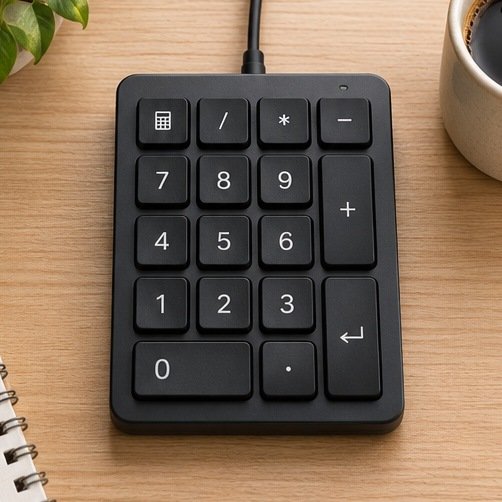
Choose a numeric keypad with the digits and navigation actions you use, in a layout that fits beside your keyboard or mouse. A wired model is a practical choice for a fixed desk. Bluetooth or a receiver can be useful when you need to move the keypad often. Before buying, check what the keys send to your operating system and how your spreadsheet or accounting program interprets them.
Write down the keys your work requires
Make a list from an ordinary session. Include numbers, decimal, Enter, operators, and any special keys used to move among cells or trigger a calculation. If you routinely enter a range of prices, notice how often you move between digits and the rest of the keyboard. Some compact pads include a backspace or shortcut, while others closely follow a full-size keyboard's number block. An extra row is useful if it reduces repeated hand travel without displacing keys that you expect to be in familiar locations.
Check whether you use the keypad as navigation when number lock is off. Find out how the new pad controls its Num Lock state and whether it interacts with the built-in keyboard. This can vary by product and system. A labeled key may behave differently depending on the app. Try a modest sample with the same functions you use at work before making it your main input device. A keypad chosen mostly for entering dates may benefit from a different shortcut arrangement than one used for numerical calculations.
Compare layout, decimal mark, and reach
Look at key size, spacing, and whether the bottom row matches your usual typing. A wide zero or tall Enter can help if you already rely on that spacing. Smaller pads can pack well but may put the zero under a different finger. Compare photographs from above and look for the physical legends, or choose a seller with a realistic return policy. Test rows of repeated numbers and notice where you make unplanned corrections. A pad that fits familiar habits can help more than one with many extra keys.
Check the decimal key with your language and regional settings. The legend printed on the key and the character entered in a program are different questions. Some apps interpret a keypad decimal as part of a local number format. Test actual data entry in the app where it matters. If you work across sessions with different settings, verify the result on every device you expect to use. A short note about the working setup can save confusion during a future software change.
Decide which side of the desk it belongs on
Try a paper template before choosing a keypad width. Put it just to the right of a compact keyboard, then consider whether it pushes the pointing device beyond a natural reach. Some people place it on the left to keep the right side free for the mouse. Try common actions on that side before committing. Others keep it away from the main working area until needed. If you can reach the numeric keys without moving something else, the extra device can make a compact keyboard easier to use.
Check desk edge, keyboard feet, and wrist angle with a comparable object. A tall case can feel uncomfortable if your main keyboard sits low. A firm base may keep it in place, while a very light one can move if you press a corner key. Look at the supported angle and the type of feet. If it sits partly over a soft desk mat, make sure the whole device remains level and each support point contacts the surface. Measure where the cable exits so it doesn't occupy the place you wanted to keep clear.
Verify connection and compatibility
For a wired pad, check the plug and cable reach from the location you've chosen. Kensington's wired numeric keypad page is an example of a product listing to consult for connector and layout details. If you're buying a wireless pad, verify whether it uses Bluetooth or a receiver, and whether you can keep the host connection available. A wireless model can be easily moved, but may require charging or batteries. Read the model's sleep and wake behavior if long pauses between sessions are normal.
Check which features need software, particularly if your work computer restricts installations. Basic digit entry and reassignable keys are separate capabilities. If a keypad offers profiles, find out whether they remain stored when you move to another machine. Look at settings documentation for the exact version you want. Avoid buying specific programmable shortcuts until you know the workflow allows them. Standard keys may meet your needs with fewer dependencies, while a supported custom layout can help repeated tasks you have already identified.
Test a normal session
Open a copy of a familiar spreadsheet or a practice file. Enter a sequence that includes decimal values, blank cells, negative numbers and repeated quantities. See which actions move to the next cell and whether the keypad unexpectedly changes the rest of the keyboard. Watch your actual wrist and mouse placement after a few minutes. A good layout should let you enter the values and resume work without searching for the keypad or moving it constantly.
Then unplug or reconnect it the way you would after a meeting or when you use the laptop away from the desk. Check whether the app receives the first press and whether the previous mode is restored. If a receiver or cable is easy to misplace, choose a fixed storage point. For a shared desk, show a second person how to switch the keypad state and verify it from the controls. The most practical device is one that keeps frequent input predictable with ordinary software settings.
Check noise and long-term use
Compare key feel and sound under normal pressure rather than pressing a single key slowly once. A firm tactile response can help if you need to know the input happened without looking down. A quiet pad may be preferable in a shared room or during calls. Check whether the markings are legible from your working angle and whether common shortcuts need both hands. Keep the keypad in a place where it stays easy to clean and can be lifted without pulling other cables along with it.
Decide what the keypad will replace
During a normal session, count which movements would change if you used a separate number pad. It can be helpful when a compact keyboard otherwise makes you reach repeatedly for a row of digits. If the main keyboard already has a number block and sits well, the main reasons to add a second pad would be placement or a specific compatible layout. Spend a few minutes on the work that actually prompted the purchase. The target is less travel and more predictable entry without adding another device you have to move before using the desk.
Related guide: Read the companion buying guide.
Reference: See the source and specifications.
Frequently asked questions
Will a keypad work anywhere a keyboard does?
Check system support and test application-specific keys. Ordinary numbers may work even when extra functions do not.
Should I choose wireless?
Choose for the desk. Wireless helps if you regularly reposition it, while a compatible cable can suit a permanent position with less power management.
What if the decimal symbol is different?
Confirm application and system settings first, then test the actual input on the exact device and configuration.


