Work backward from your desk and daily tasks
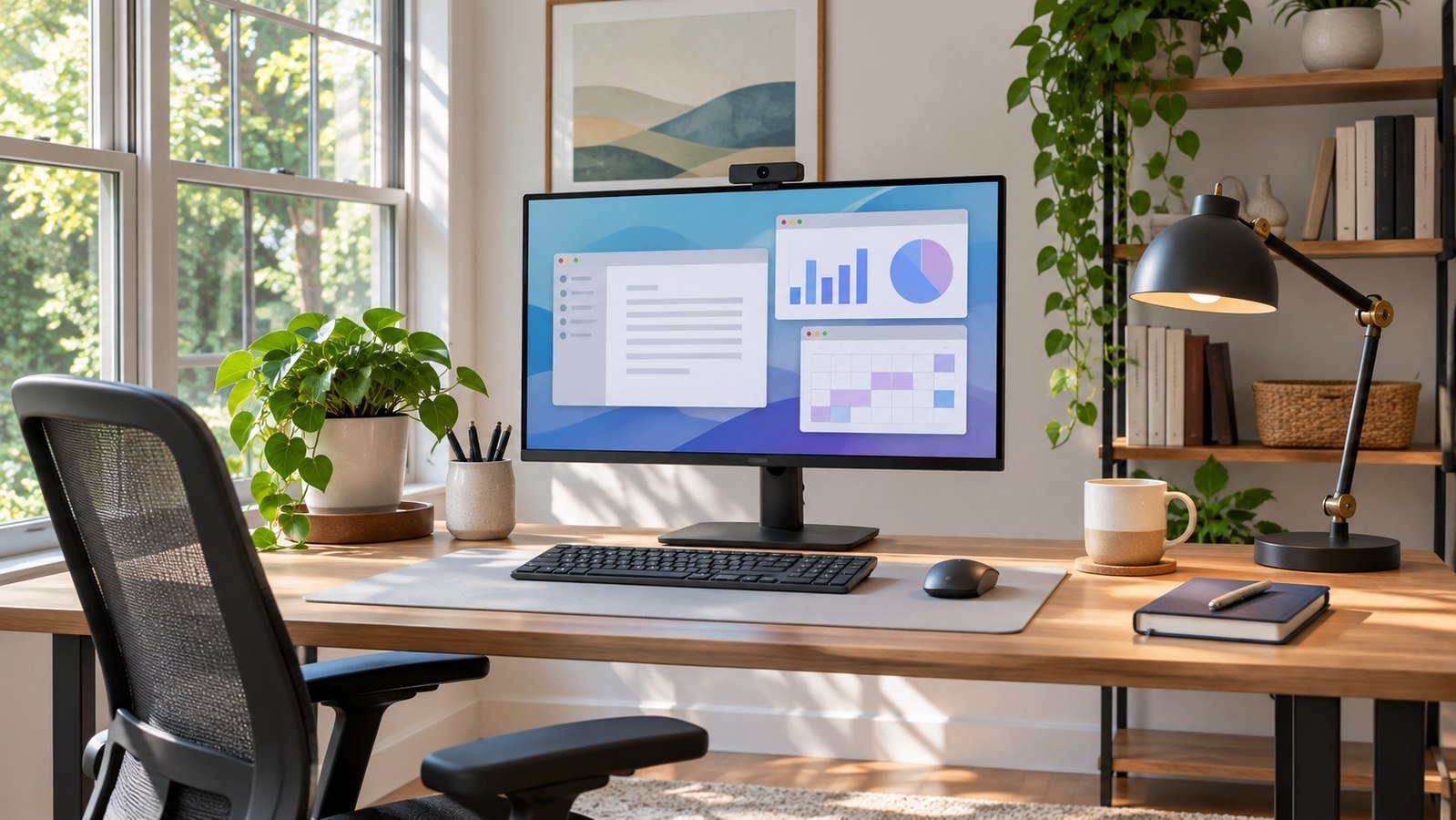
A home-office monitor should make your everyday work easier to see and organize. Start by listing the two or three applications that share the screen most often. A writer may want a document and a browser side by side. Someone handling spreadsheets may need several readable columns at once. A developer might want an editor plus a console and support for a second display. The best dimensions depend on these real tasks and on where the monitor will sit.
Measure from your eyes to the planned screen position once you are seated normally. Include the footprint of the stand and leave room for your keyboard and wrists. OSHA’s workstation guidance suggests keeping the screen directly in front of you with the top line at or below eye level and placing it at least 20 inches away. Use that as a starting point and confirm you can read the screen without leaning. This is a research-based guide. Think & Buy did not conduct hands-on testing.
Match resolution to reading distance and text size
At a fixed size, resolution changes how many pixels the monitor has available to draw text and images. For a 27-inch display, 1920 × 1080 leaves more visible space between individual pixels than 2560 × 1440 or 3840 × 2160. If you sit close and spend much of the day reading text, you may prefer the higher resolution. If you already like how a standard office display looks and only need a larger image from your existing laptop, the extra expense of 4K can go toward a stand or other needed equipment.
Scaling changes the practical workspace. You can run a 4K screen at a larger interface scale and preserve sharpness while making menus and text more comfortable to read. You may gain fewer usable columns than you initially imagined if you need larger type. If a coworker has a comparable display, ask whether you can briefly view a sample document at your usual zoom level. The trial is more telling than viewing a full-screen wallpaper from several feet away in a shop.
Map the entire connection path
Write down which ports the laptop and screen actually have. Then identify your path from laptop port through any dock and cable to the display. A USB-C connector can serve different functions. The Dell P2725D specification page lists a downstream USB-C port, for instance. The P2725QE specification page lists an upstream port with DisplayPort Alternate Mode and up to 90 W power delivery. Those ports serve different roles in a desk setup.
For a one-cable setup, check video output support and charging requirements in the laptop documentation. Verify the cable is rated for the required video and power. If you already have a dock that meets those needs, you may only need HDMI or DisplayPort on the monitor. If your desk hosts both a work laptop and a personal computer, count the inputs and investigate how easy switching is. If swapping between computers also means moving the keyboard or webcam, plan how those accessories connect.
Prioritize an adjustable stand or suitable mount
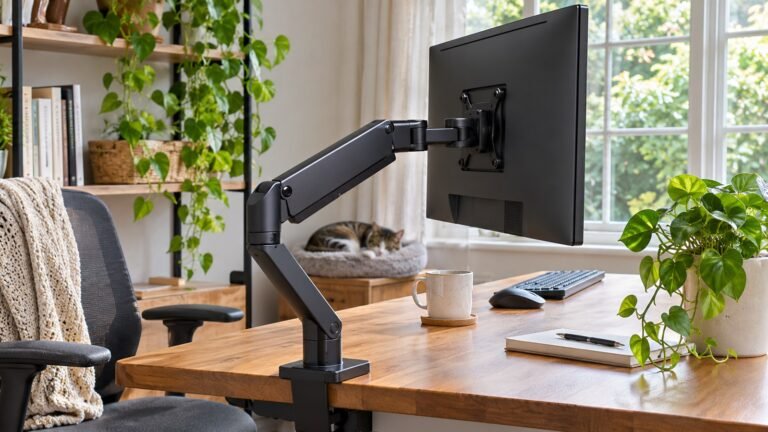
Look up the actual stand depth and adjustment range. A tall laptop stand can feel fine on a deep desk, but a compact desktop can quickly become unusable if the monitor base pushes your keyboard forward. An included height-adjustable stand can be worth more than an obscure picture preset if it lets you center the screen without improvising. If the monitor will sit on a shelf, verify the space underneath for cabling and measure whether a plugged-in connector will touch the wall.
For an arm, verify the VESA pattern and monitor weight without its stand, then review the arm’s specified capacity and any limitations for your desktop. A recessed mount can require extra hardware specified by the manufacturer. Some desks have a metal support bar or a thin edge that interferes with a clamp. A basic tape-measure check at the desk can prevent a second shopping trip, or the need to reorganize a workspace that you already like.
Choose display extras around the work you do
A higher refresh rate can make scrolling and cursor movement smoother if the computer and cable support it. For a long day of reading or light spreadsheet work, resolution, comfortable placement, and reflections could matter more. Put your attention on the problem that bothers you now. If it is difficulty reading smaller type, you may benefit more from a sharper panel and a suitable scale. If reflections are the issue, try changing the monitor angle relative to the window before spending more on another screen.
Consider speakers and webcam needs separately. A screen with speakers can clear your desk if you only want occasional audio. If calls are central to your job, check your microphone and camera arrangement first. The monitor size determines where a webcam clips on, and a monitor with a very thin frame can have limited mounting space. Check how far your existing camera cable can reach before placing the new display farther back.
Test your shortlist with a real workday
Pick one display size you know fits, then compare two resolutions and two connection arrangements. Write down what is needed for each and include any dock, cable, and stand in the delivered price. Our Dell monitor comparison shows how three similar-looking models solve different setup problems. You can also browse Monitors for more work-from-home buying advice.
Once your monitor arrives, plug in the equipment you actually use. Check that the computer offers the expected resolution and refresh rate. Open your usual applications, make a call if that is part of your day, then put the laptop to sleep and wake it up. Try any desktop switching you plan to use. Identify compatibility issues while you are still within your retailer’s return window. Check the published window before purchase.
If the desk doubles as a dining or craft table, make portability part of the decision. A light screen with an easily detached stand could suit a temporary setup. At a dedicated desk, a more adjustable stand, longer cables, or a hub might be a better use of the budget. Before comparing prices, write down which accessories need to travel with the screen and which can stay in place.
Frequently asked questions
Is a 27-inch monitor a good choice?
It can be a sensible starting size if your desk is deep enough to sit comfortably and you often work in two windows. If the stand pushes your keyboard toward the edge, compare a smaller option or consider an arm compatible with your desk and the monitor.
Can I run video through any USB-C port?
Check the output capabilities of the computer and the input capabilities of the display. You need a compatible video path from the computer to the monitor, including any cable and dock. USB-C data or charging support alone does not establish video support.
Is 4K worthwhile for documents and spreadsheets?
It can be worthwhile if you value sharper text and can connect at the intended resolution. Check your operating system’s scaling options using a sample of the software you normally use. If you already read comfortably at QHD, other upgrades may be more useful.