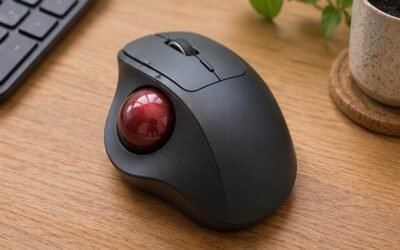
Start with fit rather than the body angle
A vertical mouse changes the shape of the grip, but the usefulness of that shape depends on your hand and task. Start by checking whether you can rest your fingers over the main buttons without stretching or squeezing the body. Move the scroll wheel and check the location of the side buttons. A listing that highlights the angle does not tell you how far the click surface sits from the heel of your hand. Check height and width separately, and make a shortlist in your handedness.
Compare against the mouse you already use
Write down what you want to change about your current setup. It might be the feel of the grip, the distance to the mouse, or how easily you move across a narrow pad. If the main problem is that your keyboard occupies most of the desk, compare its position before buying another mouse. A narrower keyboard can create space for either type. Our keyboard comparison covers number pads and how much room a compact board can free up.
Verify the size and handedness
The Logitech Lift U.S. listing is an example of a mouse with a documented 57-degree design. Check the exact variant and compare it with Logitech’s technical specifications. An angle is useful for identifying the style but does not establish which size or shape a buyer will prefer. If you use the mouse with your left hand, check that the version is designed for that hand before relying on a product photo.
Test the controls with common tasks
Try selecting text, scrolling a spreadsheet, and performing a task that involves clicking and dragging. Some designs ask you to press inward from the side, which can feel different while keeping a pointer stationary. If you tend to lift the mouse to reposition it, check how easy it is to grip and set back down. Consider the weight with any battery installed and the height of the profile relative to the desk tray. Locate the forward and back buttons without looking.
Compare wireless modes and software
Check which connection method works with your computer and docking arrangement. A USB receiver may need a suitable port, while Bluetooth may leave the port free. If you change systems often, read how device switching works. Confirm basic support with your operating system and whether optional remapping needs software. For a managed computer, check workplace approval before assuming you can install utilities. A simple mouse that behaves predictably with the software you already use may be preferable to one whose optional features cannot be enabled.
Compare a short trial and return policy
Try it during an ordinary work session, including a task where you need accurate positioning and one where you move around a large screen. A new shape can take time to feel familiar. Check whether you consistently adopt a comfortable grip without thinking about it. If the height or controls get in your way, test a different size or style within the retailer’s terms. Plan the rest of the setup using our home office monitor guide and compare the total cost in dollars with any batteries or accessories included.
Match a mouse size to the desk rather than the box
Measure your pad and approximate how much space you normally use on each side of the mouse. A narrow keyboard tray can make a tall shape feel more crowded. With the mouse placed where you actually work, check if you can lift and recenter it without touching the keyboard, desk edge, or a nearby cable. If you naturally use a larger area and broad gestures, prioritize shape and tracking on your preferred surface instead of trying to gain reach from a specification alone.
If a shop lets you handle two sizes, place them at the same height relative to your chair and keep your elbow position consistent. Notice which size gives you easier access to scrolling and side buttons, then try several slower movements where you would normally select text or move a small item in a design tool. Reachability is something you can test. A mouse can have a comfortable grip for a few seconds and still demand extra effort to reposition on ordinary work.
Check how switching devices works in practice
If you alternate between a laptop and desktop, see where the device selector sits. A button on the underside can be appropriate if you switch once a day. It may be less convenient if you change computers every few minutes. Check how the device shows which computer is active, and whether you can confirm the switch without changing where you look. Compare those controls with the keyboard you already use, especially if both devices share a receiver or a dock.
For remote work, test how the mouse behaves after your system sleeps or disconnects from the dock. Track whether your usual connection returns reliably, and check how you can update or reset it with the official instructions. A buyer who travels may value a receiver storage slot or easily replaced battery more than a large set of programmable controls. At a permanent desk, those preferences can reverse. Match features to the work you actually do.
Try one normal session
Within the return policy, keep the rest of the desk setup fixed and compare one day of use. Note how often you move the mouse back into position, accidentally press a side button, or change the pointer speed. Try routine applications first. Set any optional speed controls to a setting that feels predictable rather than assuming higher sensitivity is better. Think & Buy consulted specifications and did not independently measure health effects, sensor behavior, or long-term comfort.
Map any button you want to customize to a real job first. If you only want a back button in a browser, check whether that works before installing anything. If you need a particular shortcut for spreadsheets, it may matter whether the utility can store that assignment per application or only globally. Look up the maker’s support documentation for the current operating system. Software can be a useful part of the purchase, but basic control and everyday fit should work for you even before you start configuring extras.
Compare the package with what will sit in your work bag or on your desk. Do you have a spare port for a receiver or a reliable Bluetooth connection to the device you use on the move? Is the mouse tall enough to make a slim bag inconvenient? If you work temporarily at another desk, check how readily the pointer tracks on a surface you are likely to have there. Keep an ordinary mouse in the comparison if the vertical style does not solve a clear problem.
Frequently asked questions
Is a more upright mouse always better?
No single angle works best for everyone. Compare hand fit, ability to use the controls, and your actual work before deciding.
Can I buy the same model for either hand?
Check the SKU and grip shape. Some models offer separate right- and left-handed variants while others are shaped for one hand only.
Do I need special software?
Many basic functions may work without a utility. Check the exact model’s support notes for features such as button mapping and switch settings.